
Chronos e-Stockcard is an easy to use Business Inventory Software. It is specially designed for small and medium businesses to achieve better control in their sales, purchasing and store operations. One of the core feature of Chronos e-Stockcard is Cycle Count. Basically, Cycle Count is the validation process or comparison between Paper quantity and Physical quantity. Paper quantity is the system quantity whereas Physical quantity is the actual quantity that sits in your warehouse facilities.
For Chronos e-Stockcard, there are four options or policies available to perform cycle count activities.
- Option 1 - Location Code
You can select specific location address to perform cycle count activities. - Option 2 - Item Code
You can select specific item code to perform cycle count activities. - Option 3 - Random
You can specific how many items you wish. System will randomly choose for you. - Option 4 - Item Moving Frequency
Item moving frequency was computed by the system during your daily operation (OUT operation). It is NOT configurable
For example, lets say there are 15 copies of “MS Windows Vista Business” in warehouse facilities, to verify this, you may click “Reports > Inventory > Inventory Details – By Item” or click “Reports > Inventory > Inventory Details – By Location”. In order to perform cycle count to this item, there are 8 steps involved:

Step 1 : Launch CYCLE COUNT operation by click “Operation > Other Operation > Cycle Count”.
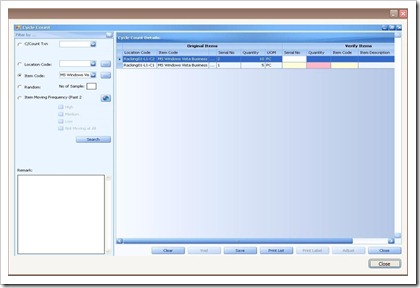
Step 2 : Select “MS Windows Vista Business” from item code drop down and click “Search”. As shown in the above figure, you can see “Cycle Count Details” are divided into two groups, i.e. “Original Items”, “Verify Items”. Original Items consists of information that is recorded in the system for the past operations.Verify Items are the fields need to be filled up during actual cycle count if there is any discrepancy from Original Items is encountered.

Step 3 : Clicks “Save”. A request of performing cycle count activity is initiated now with a transaction number assigned to this request has been generated “C/Count Txn = 21” (this is a system generated number) and the “status = Active”.
Step 4 : Click “Clear” to issue additional request for different item code. Otherwise, click “Close” to exit from the Cycle Count main screen.You can perform actual cycle count now.
Step 5 : After cycle count is performed and you have found that one copy of “MS Windows Vista Business” from the location code = Racking01-L1-C7 is lost. The actual quantity = 4 instead of 5. You must report to the system now. This process is called “adjustment”.

Step 6 : Select “21” from “C/Count Txn” drop down (alternatively you can select “MS Windows Vista Business from item code drop down) and click “Search”. This is to recall your previous records.

Step 7 : Select the appropriate row with location code = Racking01-L1-C7. Enter the QTY = 4. All remaining fields remain blank since there is NO discrepancy. (You only need to enter what is NOT tally). Click “Adjust”. The actual quantity has been adjusted now and the status of the request is changed from “Active” to “Adjusted” (as shown in the above figure)
Step 8 : last step for Cycle count is to click “Close” to exit from Cycle Count main screen.
for more information, please refer to our website : Chronos e-Stockcard | Business Inventory System


